 geotag.photos
The best way to geotag photos on Mac is to record a GPS track during your shoot and use HoudahGeo to match it to your photos by timestamp — but to understand why this extra step is necessary, it helps to know why cameras don't have GPS built in.
Why Most Cameras Don't Have GPS
Most cameras lack built-in GPS because of four engineering constraints: continuous battery drain, cold-start delays, the absence of Assisted GPS, and antenna integration challenges inside weather-sealed bodies. These limitations make GPS impractical in most dedicated cameras — even expensive ones.
Why Does GPS Drain Camera Batteries?
A GPS chip must run continuously to maintain satellite lock, drawing current even when no photo is being taken. Cameras already have limited battery capacity — a full day of shooting exhausts most batteries. Adding a GPS receiver that stays active between shots would cut battery life by an estimated 10–20%, a significant trade-off for photographers who rely on a single battery for an entire shoot.
What Is a GPS Cold Start Delay?
A GPS cold start is the 30–60 second acquisition delay that occurs when a GPS receiver powers on from a completely inactive state with no cached satellite data. Every time you switch on a camera, the GPS would need to cold-start — meaning the first 30–60 seconds of any shoot would have no location data at all.
Smartphones avoid this with Assisted GPS (A-GPS): they download satellite almanac data over cellular and Wi-Fi to lock a position in under 5 seconds. Cameras have no cellular or internet connection, so A-GPS is not available to them.
Why Do Smartphones Get a GPS Fix Instantly?
A smartphone keeps its GPS subsystem partially warm because the device never fully powers off. Cameras are switched off between uses, forcing a full cold start each session. This structural difference — always-on vs. intermittent use — makes smartphones inherently better GPS platforms than dedicated cameras.
Why Is GPS Antenna Integration Difficult in Cameras?
A GPS antenna requires unobstructed line-of-sight to the sky and a minimum physical footprint to receive weak satellite signals. Integrating an effective antenna inside a compact, weather-sealed magnesium-alloy camera body — without compromising the IP rating — is a genuine mechanical engineering challenge that most manufacturers have chosen not to solve.
Which Cameras Have Built-in GPS?
Sony Alpha series cameras (including the A7 and A9 lines) and some Nikon DSLRs have built-in GPS. However, even cameras with built-in GPS benefit from post-processing in HoudahGeo: the on-board GPS typically writes only coordinates, while HoudahGeo adds altitude, compass direction, speed, and reverse-geocoded city, state, and country names to IPTC fields. For a detailed comparison of GPS options for DSLR and mirrorless cameras, see Geotagging DSLR and Mirrorless Cameras.
The Practical Reality
Even a $5,000 professional camera needs a GPS companion device — or an iPhone running a tracking app — to reliably record where each photo was taken. The solution is not to wait for cameras to add GPS; it is to record a separate GPS track and match it to your photos afterward.
How Do Mac Photographers Solve the GPS Problem?
The standard solution for geotagging photos on Mac is to record a GPS track log during your shoot, then use HoudahGeo to match each photo's timestamp to the corresponding position on the track. This approach works for any camera — film, digital, mirrorless, or DSLR — and produces precise GPS coordinates without requiring any camera modification.
Carry a Dedicated GPS Logger
A dedicated GPS logging device runs all day on a single battery, records your path continuously, and exports a GPX file. Devices like the Garmin eTrex, Columbus V-990, or Wintec WBT-202 are small enough to fit in a jacket pocket and log a track point every 1–5 seconds.
Use an iPhone GPS Tracker App
iPhone apps including Trails, GPX Tracker, and OsmAnd record your track and export GPX natively. Your phone stays in your pocket — no extra device required. Accuracy is 3–5 meters under open sky.
Pin Locations Manually
For stationary shoots — a studio, a specific viewpoint, or an indoor location — manually pin photos on the HoudahGeo map. Drag and drop to the exact spot, or type an address to search. Useful for a handful of photos when a GPX track is not available.
How Does the GPX Geotagging Workflow Work on Mac?
Geotagging photos on Mac with a GPX track takes three steps in HoudahGeo. The entire process — from loading files to writing permanent GPS metadata — typically takes under five minutes for a batch of several hundred photos.
- Load — drag your photos and GPX file into HoudahGeo
- Process — run Geocode using GPS data; apply a clock offset correction if needed
- Output — run EXIF/XMP Export to write GPS coordinates permanently into your files
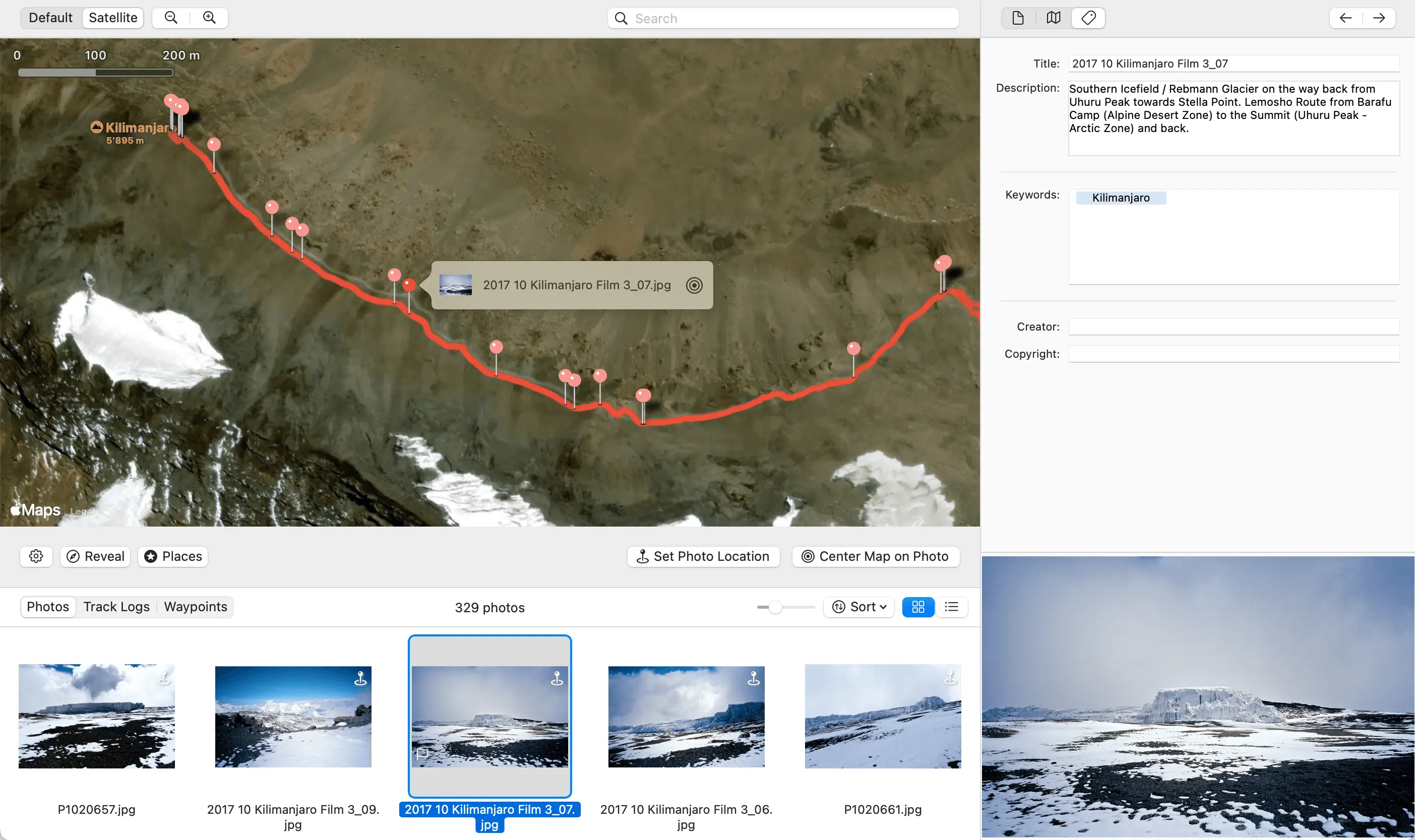
For the complete step-by-step guide with screenshots, see Geotag Photos Using a GPX Track Log.
When Should You Geotag Before Importing into Apple Photos?
Apple Photos stores location data inside its own app database — the coordinates are not embedded in the photo file's EXIF metadata. This means that when you export, share, or move photos out of Apple Photos, the location data does not travel with the file.
For iCloud Photos users, there is an additional constraint: geotag before importing. Once a photo is uploaded to iCloud, modifying that file's EXIF metadata on one device does not trigger iCloud to re-sync the updated version to other devices. The location change stays local.
iCloud Photos Users: Geotag Before Importing
If you use iCloud Photos, embed GPS coordinates in your photo files using HoudahGeo before importing them into Apple Photos. The correct order is: camera → HoudahGeo (geotag) → Apple Photos (import). Reversing this order means the GPS data will not sync across your devices.
The correct iCloud workflow: export photos from your camera card → geotag with HoudahGeo → import the geotagged files into Apple Photos. This order ensures GPS coordinates are in the file before iCloud ever sees it.
For non-iCloud users, HoudahGeo can write GPS coordinates directly to photos already in your Apple Photos library and simultaneously update the Photos app location database — so the location appears correctly in Apple Maps and the Places view. Read the full details: Apple Photos Locations vs. True Geotagging, or get the step-by-step guide: Apple Photos GPS Workflow.
What Does HoudahGeo Do for Mac Photographers?
HoudahGeo is a professional photo geotagging app for macOS, built by Houdah Software specifically for photographers who need precise, permanent GPS metadata in their files. It handles the full workflow from GPS track import to EXIF export, and supports batch processing of thousands of photos in a single session. HoudahGeo is a one-time purchase — no subscription — with a free trial available.
What HoudahGeo Does
- GPX track matching — automatic timestamp-based location assignment with linear interpolation between track points
- Camera clock offset correction — measures and compensates drift between camera clock and GPS time, to the nearest second
- Interactive map review — inspect and drag-correct any photo location after geocoding
- EXIF + XMP export — writes GPS coordinates to JPEG and TIFF files directly; writes XMP sidecars for RAW formats including CR2, CR3, NEF, ARW, and DNG
- Reverse geocoding — adds city, province/state, and country names to IPTC location fields using the assigned coordinates
- Apple Photos integration — updates the Photos library location database after writing EXIF, so locations appear in the Places view
- Lift & Stamp — copy the location from one photo and apply it to any number of others in one action
- Multi-format GPS support — reads GPX, NMEA, Garmin FIT, and Wintec TES files natively with no conversion required